How to Switch from Google Authenticator to Aegis
Migrate your 2FA accounts from Google Authenticator to Aegis for enhanced privacy, open-source security, and robust backup options.
Why Switch from Google Authenticator to Aegis?
Google Authenticator has been a long-standing choice for two-factor authentication (2FA), but it comes with several limitations and privacy concerns that drive many users towards alternatives like Aegis. Primarily, Google Authenticator is a proprietary closed-source application. This means its code isn’t publicly auditable, making it impossible for independent security researchers to verify its security claims or detect potential vulnerabilities. For a critical security tool, transparency is paramount.
Aegis Authenticator, in contrast, is entirely free and open-source software (FOSS). This allows anyone to inspect its code, contributing to a higher level of trust and security. Beyond transparency, Aegis offers superior privacy features. While Google Authenticator recently introduced optional cloud backup linked to your Google account, this ties your 2FA secrets directly to a major corporation, potentially creating a single point of failure and increasing data exposure risks. Aegis, on the other hand, keeps your encrypted secrets locally on your device and provides robust, encrypted export and backup options that you control entirely, allowing you to choose your preferred cloud storage or local backup method without Google’s direct involvement.
Furthermore, Aegis provides a richer feature set designed for better user experience and security. These include superior encryption (AES-256-GCM with a user-derived key), categorization and search for managing numerous accounts, screenshot protection, and the ability to customize icons and labels for easier identification. For users prioritizing privacy, security, and control over their authentication data, Aegis represents a significant upgrade from Google Authenticator’s more basic functionality.
Before You Begin
Before you embark on the migration process, take a moment to ensure you have everything prepared for a smooth transition:
- Your Android Device: Aegis Authenticator is an Android-only application, so you’ll need an Android smartphone or tablet to complete this migration.
- Google Authenticator App: Ensure you have the Google Authenticator app installed and working correctly on your current device, with all your 2FA accounts visible and generating codes.
- Aegis Authenticator App: Download and install Aegis from the Google Play Store, F-Droid, or its GitHub releases page. Open it once to complete initial setup.
- Device Screen Lock: You’ll need access to your device’s screen lock (PIN, pattern, fingerprint) to authorize the export of accounts from Google Authenticator.
- Backup Codes: This is critical! For every service where you use 2FA, locate and have your backup codes readily available. These codes are your ultimate safety net if anything goes wrong during the transfer or if you get locked out of an account. Never store these codes on the same device as your authenticator app.
- Optional Second Device: If you find scanning QR codes from the same device challenging, having a second smartphone, tablet, or even a computer to display the QR codes from a screenshot (if your device allows secure screenshots for sensitive data) can make the scanning process much easier.
Taking these preparatory steps will significantly reduce the chances of encountering issues and ensure a stress-free migration experience.
Step-by-Step Migration
This section details the primary method for migrating your 2FA accounts from Google Authenticator to Aegis using Google’s built-in export feature.
1. Install and Open Aegis Authenticator
First, make sure Aegis is installed and ready:
- Download: Get Aegis from Google Play, F-Droid, or GitHub.
- Open: Launch the app. You might see an empty screen with a ’+’ button.
2. Export Accounts from Google Authenticator
Google Authenticator has a convenient feature to transfer multiple accounts at once:
- Open Google Authenticator: Launch the app where your 2FA accounts are currently stored.
- Access Menu: Tap the three vertical dots (⋮) in the top-right corner of the screen.

- Select “Transfer accounts”: From the dropdown menu, choose this option.

- Choose “Export accounts”: On the next screen, select the “Export accounts” option.

- Authenticate: You will be prompted to verify your identity using your device’s screen lock (PIN, pattern, or fingerprint). Complete this step.
- Select Accounts: A list of your current 2FA accounts will appear. Select all the accounts you wish to migrate to Aegis. By default, most should be pre-selected.

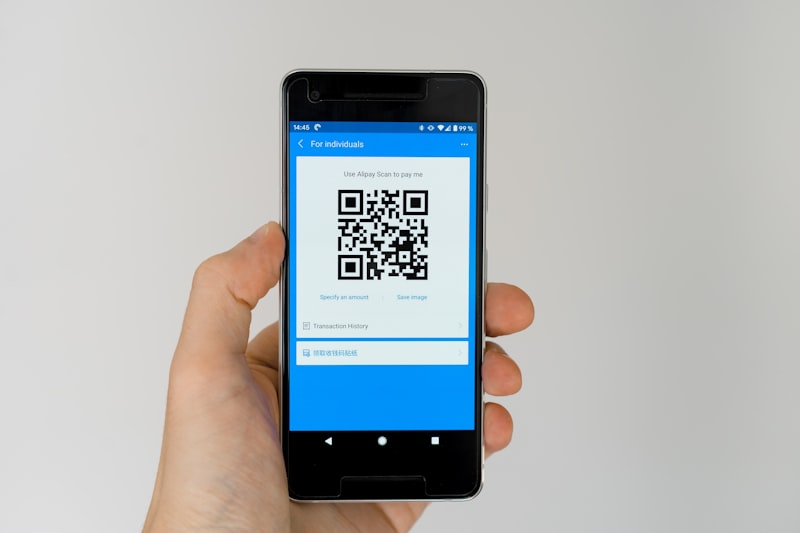
- Generate QR Code(s): Tap the “Export” button. Google Authenticator will generate one or more QR codes containing your selected account data. If you have many accounts, it might show several QR codes sequentially, requiring you to swipe through them.
3. Import Accounts into Aegis
Now, switch to Aegis to import the generated QR codes:
- Open Aegis Authenticator: Return to the Aegis app.
- Initiate Scan: Tap the large ’+’ (plus) button in the bottom-right corner of the screen.

- Select “Scan QR code”: Choose this option from the menu that appears.
- Scan QR Codes: Your device’s camera will activate. Point it at the QR code(s) displayed by Google Authenticator.
- If Google Authenticator generated one QR code, simply scan it.
- If Google Authenticator generated multiple QR codes, scan the first one, then swipe in Google Authenticator to the next QR code and scan that one, and so on, until all have been scanned. Aegis will typically give you feedback as it imports each set of accounts.

- Review Import: After scanning, Aegis will process the data and list the newly imported accounts. Review this list to ensure all your accounts have been successfully added. You may choose to assign a category or custom icon to each.

Importing Your Data
The method described above, using Google Authenticator’s “Export accounts” feature, is the most straightforward way to import your 2FA data into Aegis. This process encapsulates the secret keys for multiple accounts into a QR code format that Aegis is designed to read.
Historically, Google Authenticator did not have such an easy export feature. Users would have to disable 2FA for each service, then re-enable it by scanning the service’s specific QR code with Aegis. The current “Export accounts” functionality significantly streamlines this, making the migration much faster and less prone to errors.
What’s happening behind the scenes: When you export, Google Authenticator essentially bundles the secret keys (the long string of characters unique to each 2FA setup) for your selected accounts into a format readable by other authenticator apps, most commonly via a series of QR codes. Aegis then parses these QR codes, extracts the secret keys, and creates the corresponding 2FA entries in its secure vault.
Tips for a Smooth Transition
To ensure your migration from Google Authenticator to Aegis is as seamless and secure as possible, consider these additional tips:
- Don’t Delete Prematurely: Do NOT remove accounts from Google Authenticator until you have thoroughly verified that Aegis is generating correct, working codes for all your services. Test critical accounts first.
- Test Logins: The most crucial verification step is to attempt logging into your services using the codes generated by Aegis. Try logging into an important email or financial service. This confirms that the secret keys were transferred correctly and your device’s time is synchronized.
- Backup Aegis Regularly: Aegis offers robust encrypted backup capabilities. Go to
Settings > Backupin Aegis to create an encrypted backup file. Store this file securely (e.g., on cloud storage, an external drive) and ideally in multiple locations. This is your safety net for Aegis itself. - Organize in Aegis: Take advantage of Aegis’s features like categorization, custom icons, and search. Label your accounts clearly (e.g., “Work Email,” “Personal Bank”) to easily find them later.
- Keep Backup Codes Safe: Reiterate the importance of your original 2FA backup codes. These are your last resort if you lose your phone or encounter problems with any authenticator app. Store them offline and securely.
- Time Synchronization: Ensure your device’s date and time are set to synchronize automatically with network time. Incorrect time can lead to invalid 2FA codes. You can usually find this setting under your device’s system settings (e.g.,
Settings > System > Date & time). - Give it a Week: After you’ve completed the migration and verified everything, consider keeping Google Authenticator installed (without accounts) for about a week. This provides a grace period in case an overlooked account surfaces or a new issue arises. Once you’re fully confident, you can uninstall Google Authenticator completely.
What You Might Miss (And Alternatives)
While Aegis offers significant advantages, especially in privacy and security, some users migrating from Google Authenticator might notice a few differences or “missing” features that are handled differently in Aegis.
- Google Account Sync (Cloud Backup): Google Authenticator recently added an optional feature to back up your 2FA secrets to your Google account, allowing for easier restoration across devices.
- Aegis Alternative: Aegis does not offer direct cloud sync linked to an account. Instead, it provides robust local encrypted backups. You can export an encrypted vault file from Aegis (via
Settings > Backup > Export Encrypted). This file can then be manually stored on cloud storage services like Google Drive, Dropbox, Nextcloud, or via local methods like USB drives. This gives you complete control over where your encrypted data resides, without tying it to a specific company’s service. For automatic sync, you can combine Aegis’s backup feature with a separate file synchronization app (e.g., Syncthing, FolderSync) to push the encrypted backup file to your preferred cloud storage regularly.
- Aegis Alternative: Aegis does not offer direct cloud sync linked to an account. Instead, it provides robust local encrypted backups. You can export an encrypted vault file from Aegis (via
- Cross-Platform Availability: Google Authenticator is available on both Android and iOS. Aegis Authenticator is exclusively for Android.
- Aegis Alternative: If you switch to an iOS device, you would need to migrate to an iOS-compatible authenticator app like Authy or Raivo OTP. For Android users, this is not an issue.
- Simplicity/Minimalism: Some users might find Google Authenticator’s very basic interface appealing for its sheer simplicity.
- Aegis Alternative: While Aegis offers more features like categorization and search, its core interface for generating codes remains clean and easy to use. The additional features are optional and can be ignored if you prefer a minimalist experience.
These differences highlight Aegis’s commitment to user control and privacy, even if it means a slightly different approach to features like cloud backup compared to Google’s integrated ecosystem.
Conclusion
Congratulations on making the move from Google Authenticator to Aegis! By switching to an open-source, privacy-focused authenticator, you’ve taken a significant step towards enhancing your digital security and control over your sensitive data. Aegis offers not just a secure vault for your 2FA secrets but also empowers you with robust backup options, organizational features, and the transparency that comes with a publicly auditable codebase.
Remember to keep your Aegis backups secure, test your new 2FA setup, and enjoy the peace of mind that comes with using a powerful, community-driven security tool. Your journey towards a more private and secure digital life continues, and Aegis is a strong ally in that endeavor.